How to Job Search on LinkedIn Efficiently (A Weekly System)
TL;DR: To job search on LinkedIn efficiently, stop starting each session from an empty search bar. Build the parts that don't change once: a written plan, three to five saved searches turned into alerts, a few resume versions, and a tracker that also records applications you finish on company websites, because LinkedIn's own Applied list only covers Easy Apply jobs completed on LinkedIn. Then run every session the same way (triage new posts, apply to a shortlist, log what you did) and review the numbers once a week. The planning part has evidence behind it: in one field experiment, job seekers who wrote a detailed plan sent 15% more applications without spending more time searching, and got 30% more job offers.
An efficient LinkedIn job search is one where each session starts from searches you've already built and ends with decisions you've written down, so nothing gets searched, read or decided twice.
What does "efficient" mean in a LinkedIn job search?
It doesn't mean more hours on the site. LinkedIn Learning's own course on finding a job puts the problem better than we could: "It's easy to log in, scroll through some jobs, and then walk away feeling like you didn't even make any progress." Time spent scrolling is easy to measure and tells you very little. What counts is how many real decisions you make per session (save, skip, apply, follow up) and whether you ever have to make the same one again.
Volume is one reason to get it right. A LinkedIn representative told CNBC in October 2025 that applications on the platform had "surged more than 45% in the past year, with nearly 9,500 applications submitted every minute". In a pool that crowded, an hour spent re-reading postings you already rejected is an hour you don't spend on the ones worth applying to.
Stamina is the other. Economists Alan Krueger and Andreas Mueller surveyed 6,025 unemployed workers every week for up to 24 weeks and found that "the amount of time devoted to job search declines sharply over the spell of unemployment". The same people reported feeling "particularly sad during episodes of job search", and sadder the longer it went on. A routine is how you keep searching on the weeks you don't feel like it, because it runs on a fixed block of time and a checklist, whatever your mood.
If you want one-off tactics instead, our standalone LinkedIn job search tips cover those. This post is about the system that holds them together.
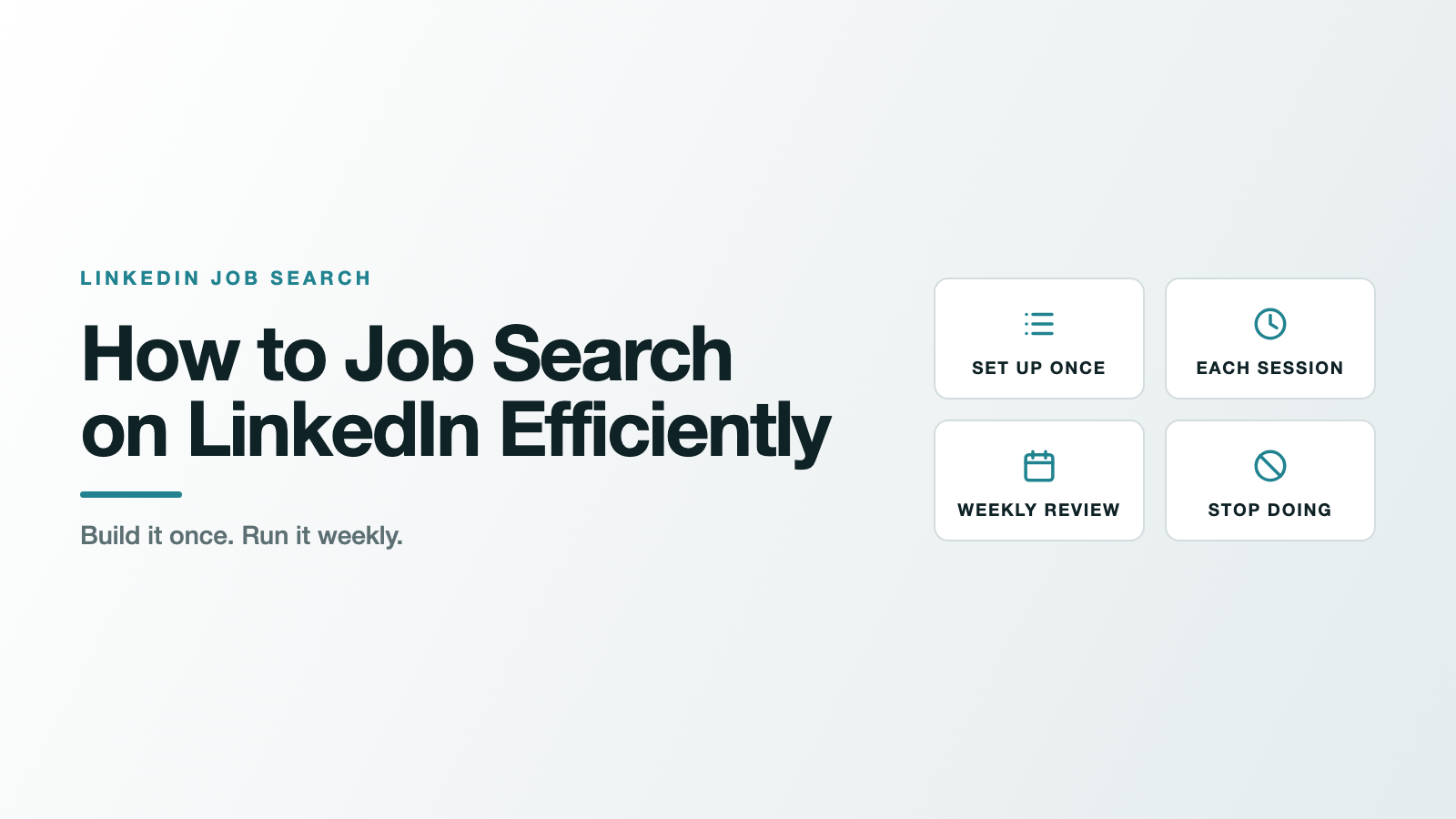
The LinkedIn job search routine at a glance
| Layer | How often | What you do | What it gives you |
|---|---|---|---|
| Set up once | One sitting, about an hour | Write a plan, build alerts, prepare resume versions, start a tracker, set your filters | Sessions that start in seconds instead of from scratch |
| Each session | Our suggestion: 30 to 45 minutes, three or four times a week | Triage new posts, apply to the shortlist, log it, one networking action | A steady number of applications you actually chose |
| Weekly review | 20 minutes, same day each week | Count outcomes, fix or retire searches, archive old saves | A search that improves instead of repeating itself |
| Stop doing | Never | Scrolling recommendations, applying mid-browse, spraying applications, auto-apply bots | Hours back |
The times are our recommendation, not a finding. Adjust them to the hours you really have.
What to set up once (about an hour)
1. Write a one-page search plan
This sounds like homework. It's the step with the strongest evidence behind it.
In a field experiment published in the American Economic Journal: Applied Economics, Martin Abel and colleagues asked one group of unemployed young job seekers to write a detailed job search plan. Those who did "increase the number of job applications submitted (by 15 percent) but not the time spent searching". They also diversified their search and used more formal channels, and the plan group ended up with 30% more job offers and 26% higher employment. Weekly reminders and peer support, added on top, made no further difference. The plan did the work.
A Dutch study of 175 unemployed people by Edwin van Hooft and colleagues points the same way: intending to search turned into actual searching through concrete plans for when, where and how (what psychologists call implementation intentions).
Your plan needs five lines:
- Target titles. Our range is two to four, including at least one adjacent title you'd genuinely take.
- Locations and work type. On-site cities, hybrid radius, or remote, and where remote has to be based.
- Deal-breakers. The words, employers and conditions that mean an instant skip.
- Session times. Actual days and hours, written down.
- A weekly application number. Yours, not someone else's. You'll adjust it in the weekly review.
Why the adjacent title? In a study published as an IZA discussion paper and later in the Review of Economic Studies, Michele Belot, Philipp Kircher and Paul Muller showed half of their job seekers relevant alternative occupations while they searched. Those people considered a wider set of jobs, and in the discussion-paper version their job interviews rose by 44%. The authors note that "Effects are strongest for participants who otherwise search narrowly". If your plan has a single title, consider adding an adjacent one.
2. Turn your best searches into three to five alerts
LinkedIn's search box takes plain language. Its help page tells you to "describe the job you're looking for in your own words", and gives "senior product designer for fintech in California" as an example. Run one search per target title from your plan, add your filters, then flip the alerts toggle at the bottom of the results.
One timing note: LinkedIn's help page on AI-powered job search says the new search "is available to all LinkedIn members worldwide" and that "We’re gradually retiring classic job search starting in September." Everything this routine uses is on that page's list of what stays: describing the role in your own words, plus the Date posted, In my network and Under 10 applicants filters (Sort by Most recent, which nothing here relies on, is among the filters LinkedIn says it is still working to bring back). The page doesn't cover alerts, so give yours an extra look in your first weekly review after the switch.
A few documented limits shape how many to build. LinkedIn caps you at 20 alerts, and each one can arrive "on a daily or weekly basis through email, app notifications, or both". We stay well under that cap: in our experience, three to five well-built alerts are easier to keep clean than twenty loose ones. Our split: daily for the one or two searches you'd act on the same day, weekly for anything exploratory.
LinkedIn's own best-practices page frames alerts as a speed advantage, saying a remote search with an alert can "increase your chances of being one of the first applicants". If your alerts already arrive full of the wrong roles, fix the search before you rebuild the alert; we walk through how to fix alerts that send the wrong jobs, and how to build a remote search that stays remote.
3. Set your Open to Work preferences on purpose
Open to Work has three visibility settings: All LinkedIn Members, Recruiters only, and Visible only to you. Even the private one does something. LinkedIn says that with it, "Your job preferences are used for LinkedIn to tailor your job recommendation."
If you're employed, read the fine print before choosing Recruiters only. LinkedIn takes steps to hide your status from recruiters at your current company, but says plainly that "we can't guarantee complete privacy".
4. Prepare your resume versions
LinkedIn lets you upload a default resume and "save up to four additional resume options for different job descriptions". We make one per target title and name each file after the title it serves, so picking one takes a second.
Do this now, not at the point of applying. LinkedIn's application help page is blunt: "You cannot edit or withdraw an application once submitted through LinkedIn." On an application submitted through LinkedIn, the wrong file can't be swapped later.
5. Build a tracker that catches every application
LinkedIn has a built-in Job tracker. Saved jobs sit under a Saved tab, where you can change a job's stage, archive it, or unsave it. You can hold up to 2,000 saved jobs, and "there is no way to unsave multiple jobs at once", so pruning is manual.
Then there's the gap. The Applied tab is where LinkedIn shows applications you submitted through it; its best-practices page says you "can view all applications for Easy Apply jobs hosted on LinkedIn". Jobs with a plain Apply button send you to the company's website or a job board instead, and the same page says it directly: "Jobs that require application completion on their company website won't be available on this list." Every external application you finish is missing from that list.
LinkedIn's own advice is the fix: "Keep track of jobs you've applied to on a spreadsheet with dates and notes." Here are the columns we'd use.
| Column | Why it's there |
|---|---|
| Date applied | Tells you when to follow up and when to let go |
| Company and title | The obvious part |
| Link to the posting | Postings get edited or closed |
| How you applied | Easy Apply or company site, so you know which ones LinkedIn won't show you |
| Resume version | Shows which version gets replies |
| Source search | Shows which alert is earning its place |
| Status | Applied, replied, interview, rejected, no response |
| Next action and date | The only column you look at during a session |
Optional: set your filters once, too
Cleaning up results belongs in setup too. Our full guide to filtering LinkedIn jobs covers LinkedIn's native filters, and separate posts show how to exclude companies and staffing agencies and hide promoted jobs on LinkedIn.
This is the part JobSieve was built for: a free, open-source Chrome extension that keeps a company blocklist, a keyword blocklist, a location exclusion list and a highlight list for the skills you want, and applies them as you scroll LinkedIn's job pages. Two of its toggles matter most for a repeating routine: hide Viewed and hide Applied, which hide the cards LinkedIn has already labelled Viewed or Applied. With both on, each session opens on postings you haven't touched. No account, nothing sent anywhere; your lists stay in your browser's own extension storage, and you can read its source on GitHub. If that sounds useful, you can add JobSieve on the Chrome Web Store.
One honest caveat. LinkedIn says it doesn't permit browser extensions that "scrape, modify the appearance of, or automate activity on LinkedIn's website", and that members who use prohibited tools "risk having their accounts restricted or shut down". As of version 2.8.0, JobSieve's code sends no data anywhere and takes no actions on your behalf, which is why we describe it as neither scraping nor automating. Hiding job cards does change how the page looks, though, so it sits inside that rule. The rule isn't aimed at JobSieve alone: its own example of modifying appearance is "removing, covering, or obscuring an advertisement included on the Services", which is what an ad blocker does. We explain where it stands, and how to check any job-search extension before installing it, in a separate post. The decision is yours.
How to job search on LinkedIn efficiently, session by session
This is our routine, not LinkedIn's instructions, and the order is the point: same steps, same sequence, every time.
6. Triage first: new posts only, and apply to nothing
Open your alerts or saved searches and set Date posted to match your rhythm. LinkedIn's filters can show "jobs posted within the last 24 hours, the past week, and the past month". We use the last 24 hours on a daily schedule and the past week after a gap. Either way you only see what's new since you last looked.
Then go down the list and make one decision per card: save or skip. We don't apply during triage. Mixing the two is where sessions vanish, because every application turns a quick save-or-skip into a long task, and you lose the comparison with everything further down the list.
Before you save, give the posting the one-minute ghost job check. LinkedIn also suggests you "Consider researching the companies and ways you can recognize and avoid fraudulent tactics before you apply." Triage is the cheap moment to do it.
If a search returns more than you can read, LinkedIn offers an Under 10 applicants filter that shows "jobs that currently have less than 10 applicants". We use it to sort a crowded day. It says nothing about which jobs are worth your time.
7. Then apply to your shortlist
Now open your Saved tab and apply to the strongest saves, up to the per-session number in your plan. Some will have Easy Apply; others will route you to the company's website or job board. Both are fine. Choose the resume version first, since you can't change it afterwards.
This is the step where a little tailoring pays and a lot of tailoring stalls you. If writing a tailored resume and cover letter for each role is what slows your sessions down, JobMason tailors your resume, cover letter, hiring-manager email and application answers to the specific posting. JobSieve finds the right roles; JobMason tailors what you send to each one.
8. Log it before you close the tab
One row per application in your tracker, including how you applied and which resume you used. In LinkedIn's Job tracker, move anything you decided against to Archived. It's quick, and it's what makes the weekly review possible.
9. One networking action
End with one message, chosen from two options LinkedIn itself lists. Its printable job search checklist includes "Request a referral", and its best-practices page suggests you "Contact the job poster via InMail (when available) to tell them why you want the job." Our rule: if you know someone at a company on today's shortlist (the In your network filter, called In my network in the new search, helps you check), ask them for a referral. If you don't, and the poster can be messaged, send two or three sentences on why you want that specific role. If neither applies, skip it and close the session. One message a session adds up across a month without eating the session.
The weekly review (20 minutes, same day every week)
Our checklist, on whichever day you pick:
- Count. Applications sent, replies, interviews, each grouped by the source search in your tracker.
- Fix or retire searches. An alert that produced nothing you saved this week needs rebuilding or deleting. Our five-minute alert review has the steps.
- Broaden or narrow. Few relevant results and few replies? Add an adjacent title, which is the move the Belot study found helped narrow searchers most. Plenty of replies for roles you don't want? Tighten the search or your deal-breaker list.
- Archive old saves. Our rule of thumb is a week: anything saved longer than that without an application goes to Archived. Remember there's no bulk unsave.
- Update the plan. Change next week's application number based on what you could actually sustain.
That last point matters. Treat the plan as a draft you rewrite every week.
What to stop doing
Scrolling recommendations instead of running your searches. LinkedIn says that when ordering results, "we consider your search activity on LinkedIn, the set of jobs returned by the query, and other members who have made similar searches". That's handy for discovery and poor as a work queue: the order shifts with your behaviour, and nothing in it tells you what you've already decided.
Applying while you browse. Triage, then apply. Covered above.
Re-reading jobs you've already seen. Your tracker and LinkedIn's Saved and Archived lists answer "have I looked at this?" Use them, or turn on JobSieve's hide Viewed and hide Applied toggles.
Spraying applications into crowded postings. In a field experiment on an online labor market (not LinkedIn), John Horton and Shoshana Vasserman capped job openings at 50 applicants or five days unless the employer asked for more. Applicants to those jobs fell 11%, and the cut had "no discernible effect on the probability a hire was made". That study wasn't on LinkedIn and didn't measure application quality, so take only the narrow point: in that market, fewer applicants didn't change whether a hire was made. Our inference from it, and it is ours, is that raw volume makes a poor weekly goal. Set your number for applications you'd defend, and spend the saved time on fit.
Handing it all to an auto-apply bot. LinkedIn's rules cover extensions that "automate activity" on the site, and an application submitted through LinkedIn can't be edited or withdrawn. A bot's mistakes there stay in your name.
Treating LinkedIn's Applied tab as your record. It doesn't show external applications. Your spreadsheet does.
FAQ
How much time should I spend job searching on LinkedIn each day? We have no research-backed figure to give you. Our suggestion is a fixed 30 to 45 minute block, three or four times a week, plus a 20-minute weekly review. Krueger and Mueller found search time falls sharply as a search drags on, so a protected block you can repeat is worth more than an occasional marathon.
How many jobs should I apply to per week? Set your own number in your plan and revise it in the weekly review. In the Abel study, writing a plan raised applications 15% without adding search time, so writing the plan is the first lever. Then prioritise fit over count.
Should I use Easy Apply? Use it when the role is a real match. Easy Apply applications completed on LinkedIn appear in its Applied tab; applications finished on a company website don't, so log those in your tracker. Either way, you can't edit or withdraw once you submit through LinkedIn.
Should LinkedIn job alerts be daily or weekly? LinkedIn offers both, by email, app notification or both, with up to 20 alerts at once. We use daily for the one or two searches we'd act on the same day and weekly for the rest.
Does LinkedIn Premium make job searching more efficient? It adds applicant insights, such as how many people applied and how you compare. LinkedIn notes that for jobs where applications are accepted on an external site, "data reflects people who clicked to apply, not completed applications". The system above works the same with or without it.
Start with this week
Knowing how to job search on LinkedIn efficiently comes down to a one-hour setup and a routine you repeat. This week: block the hour, write the five-line plan, build three alerts, and start the spreadsheet. Run your first session tomorrow in the same order, triage then apply then log, and put the weekly review in your calendar for the same day next week.
Frequently asked questions
- How much time should I spend job searching on LinkedIn each day?
- We have no research-backed figure. Our suggestion is a fixed 30 to 45 minute block, three or four times a week, plus a 20-minute weekly review. Research on unemployed workers found that time spent searching falls sharply as a search drags on, so a protected block you can repeat is worth more than an occasional marathon.
- How many jobs should I apply to per week?
- Set your own number in a written plan and revise it in your weekly review. In one field experiment, writing a detailed plan raised applications by 15% without adding search time, so the plan is the first lever. Then prioritise fit over count.
- Should I use Easy Apply?
- Use it when the role is a real match. Easy Apply applications completed on LinkedIn appear in its Applied tab, while applications finished on a company website do not, so log those in your own tracker. You cannot edit or withdraw an application once you submit it through LinkedIn.
- Should LinkedIn job alerts be daily or weekly?
- LinkedIn offers both, by email, app notification, or both, with up to 20 alerts at once. We use daily for the one or two searches we would act on the same day and weekly for the rest.
- Does LinkedIn Premium make job searching more efficient?
- Premium adds applicant insights, such as how many people applied and how you compare. LinkedIn notes that for jobs accepting applications on an external site, that data reflects people who clicked to apply, not completed applications. The system in this post works the same with or without it.
Sources
- LinkedIn Learning's job search course describes logging in, scrolling through jobs and walking away feeling like you made no progress, and recommends a routine.
- A LinkedIn representative told CNBC in October 2025 that applications on LinkedIn surged more than 45% in a year, with nearly 9,500 submitted every minute.
- Krueger and Mueller (2011) surveyed 6,025 unemployed workers weekly for up to 24 weeks and found time devoted to job search declines sharply over the spell, with job search a particularly sad activity that grows sadder over time.
- Abel, Burger, Carranza and Piraino (2019): job seekers who completed a detailed job search plan submitted 15% more applications without more search time, diversified their search, and had 30% more job offers and 26% higher employment; reminders and peer support added nothing.
- van Hooft and colleagues found implementation intentions mediate the link between job search intention and job search behaviour in 175 unemployed people in the Netherlands.
- Belot, Kircher and Muller: showing job seekers relevant alternative occupations broadened their search and increased job interviews (by 44% in the discussion-paper version), with effects strongest for narrow searchers.
- LinkedIn's job search box accepts plain-language descriptions of the job you want, and alerts can be switched on for a filtered search.
- LinkedIn allows up to 20 job alerts at once, delivered daily or weekly by email, app notifications, or both.
- LinkedIn's AI-powered job search help page (archived 2026-08-30 and 2026-09-11) states the new search is available to all members worldwide and that classic job search is being gradually retired starting in September; Date posted, In my network and Under 10 applicants remain available, and Sort by Most recent is among filters LinkedIn is working to bring back.
- LinkedIn's best practices: set up job alerts, save jobs to apply later, keep a default resume plus up to four more, keep a spreadsheet of applications with dates and notes; its applied list shows Easy Apply jobs and excludes applications completed on company websites.
- Open to Work visibility can be all members, recruiters only, or visible only to you; private preferences still tailor recommendations, and LinkedIn cannot guarantee complete privacy from recruiters at your current company.
- Jobs show Easy Apply or Apply; Apply routes to the company website or a job board, and an application submitted through LinkedIn cannot be edited or withdrawn.
- Saved jobs live in LinkedIn's Job tracker, can be moved between stages, archived or unsaved, cap at 2,000, and cannot be unsaved in bulk.
- Applications submitted on LinkedIn are listed under Job tracker, Applied tab.
- LinkedIn does not permit browser extensions that scrape, modify the appearance of, or automate activity on its website, and members using prohibited tools risk having accounts restricted or shut down.
- LinkedIn's Date posted filter offers the last 24 hours, past week and past month, and it also offers Under 10 applicants and In your network filters; result order considers your search activity and similar members' searches.
- LinkedIn's printable job search checklist includes requesting a referral and contacting the job poster.
- Horton and Vasserman: in an online labor market experiment, a soft cap cut applicants to treated jobs by 11% with no discernible effect on the probability of a hire or match quality.
- LinkedIn Premium applicant insights reflect clicks to apply, not completed applications, for jobs accepting applications on external sites.
- JobSieve v2.8.0 is free and open source (MIT), needs no account, sends no data, and offers block lists, a highlight list and hide Viewed and hide Applied toggles on LinkedIn job pages.