How to Find Remote Jobs on LinkedIn (Without the Noise)
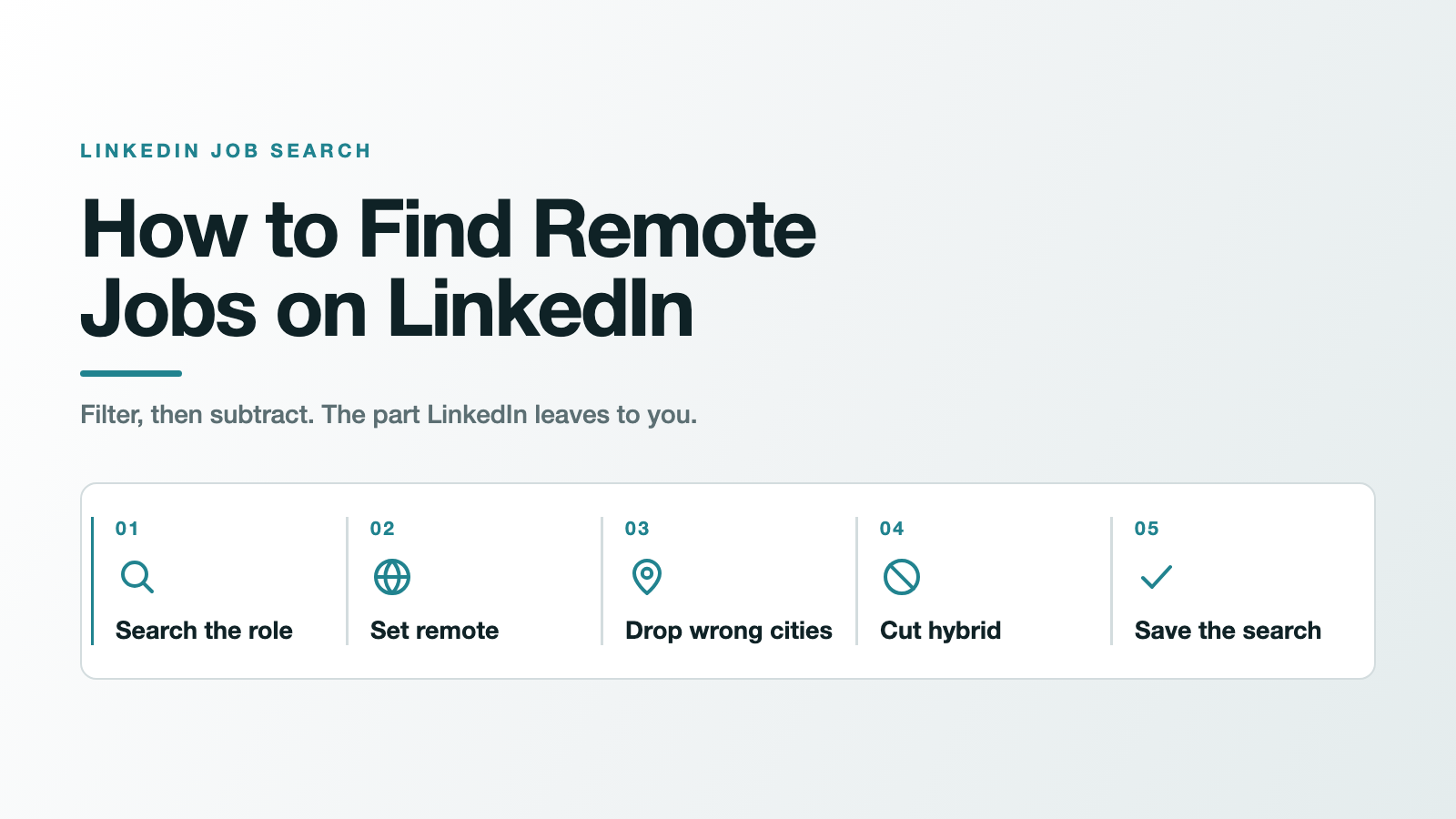
TL;DR: To find remote jobs on LinkedIn, open the Jobs tab, describe the role you want in the search bar, then select Remote in the filters at the top of the results page. That's the documented path, and on its own it won't give you a clean list. LinkedIn says results may include additional suggestions based on your search and preferences, and it orders them using your past search activity. So the method that works has a second half: after you filter for Remote, subtract the locations you can't work in.
On LinkedIn, "Remote" is a workplace type, and it's a different field from where the job is located. A listing can be tagged Remote and still show a city like Austin, Texas, so it clears your filter and lands in your results anyway.
How to find remote jobs on LinkedIn, the documented way
Start with LinkedIn's own instructions, because they're correct as far as they go. LinkedIn's help page for finding remote jobs describes four moves:
- Click the Jobs icon at the top of your LinkedIn homepage.
- Use the search bar to describe the job you're looking for in your own words. The help page's own examples are written as sentences: "I want to use my marketing skills to cure cancer" and "senior product designer for fintech in California." For how to phrase those searches so they land, see our LinkedIn job search tips for 2026.
- On the results page, open the filter options at the top and select Remote.
- Turn on the alerts toggle to get job alerts for that search.
Follow those steps exactly and you'll get results. You'll also get hybrid roles, roles anchored to a city three time zones away, and roles that turn out to be remote only if you already live in a particular country. Here's why that happens.
Why your Remote filter still shows hybrid and on-site jobs
This is where most advice stops and where the real answer starts. Four things are going on, and LinkedIn documents three of them itself.
Filters shape your results, they don't wall them off. On its page about filtering and sorting job results, LinkedIn puts this under a heading called "Important to know":
You may see additional suggestions based on your search query and preferences.
Read plainly, that sentence means the Remote checkbox steers which jobs surface rather than sealing the list against everything else. That's our reading of LinkedIn's wording, not a setting the company documents.
Ordering is personal to you. The same page says that before returning results, LinkedIn considers your search activity on the platform, the set of jobs the query returned, and other members who have made similar searches. Two people ticking Remote on the same query can see different lists.
Workplace type and location are separate fields. LinkedIn treats workplace type as its own attribute with three values: on-site, remote, or hybrid. (That three-value model is spelled out in LinkedIn's Recruiter documentation, which covers how recruiters filter candidates rather than how job search behaves. It shows workplace type and location are separate attributes in LinkedIn's model, and nothing more than that.) Location is a separate box that takes a postal code, city, state, province, or country. Two different fields, which is why you'll see cards carrying the Remote tag and a city name at the same time.
You have a result ceiling. Any LinkedIn job search renders up to 1,000 results by default. A noisy search spends that budget on roles you can't take.
None of this means the Remote tag is a lie. Some genuinely remote roles are still restricted to a single country or a band of time zones, and that restriction usually appears in the job description rather than in the tag. Job seekers hit this constantly. Threads like "Can't search for remote jobs anymore? What did I touch" and "No longer able to filter my job searches for 'remote' opportunities" show up on r/linkedin regularly, usually with no answer attached.
How rare are fully remote jobs in 2026?
Rarer than the internet suggests, and it's better to know that going in.
Robert Half's analysis of job postings found that in Q2 2026, 87% were fully on-site, 10% were hybrid, and just 3% were fully remote. The share of fully in-office roles climbed from 65% in Q4 2025 to 87% in Q2 2026. Their own read on what that means for you: more competition for fully remote roles, and a good chance that new openings come with at least some office time.
Hybrid work also clusters geographically. These states had the highest share of hybrid postings in Q2 2026:
| State | Share of hybrid job postings |
|---|---|
| Minnesota | 13% |
| Massachusetts | 13% |
| New York | 12% |
| Colorado | 11% |
| Illinois | 11% |
| Washington | 11% |
| Wisconsin | 11% |
(That's across all postings Robert Half analyzed, not LinkedIn specifically.)
When 3% of postings qualify, precision beats volume. Every wrong-location listing you scroll past is attention taken from the small set of roles you can actually accept.
Filter, then subtract: the part LinkedIn leaves to you
Look at the filters LinkedIn documents on the job search results page: Location, Date posted, Easy Apply, Company, Experience level, Employment type, Under 10 applicants, In your network.
Every one of them is phrased as something to include. Each says show me this. Name a company and you get that company; name a city and you get that city.
For a remote search, the useful move runs the other way. The roles wasting your time aren't missing from your filters. They're passing through them.
A repeatable remote search on LinkedIn (5 steps)
Step 1: Describe the role, then filter for Remote
Run the search as LinkedIn documents it, describing the job in the search bar and selecting Remote on the results page. Sorting and date-range mechanics matter too, and they're covered in the complete guide to filtering LinkedIn jobs rather than repeated here.
Step 2: Set your location field deliberately
The location box accepts a postal code, city, state, province, or country. Which one you choose changes your results more than people expect. Entering your country surfaces nationwide remote roles that a metro-level search can bury; entering your metro gives you a shot at hybrid roles you could actually attend. Pick based on what you'd genuinely accept, and run the search twice if the answer is "either."
Step 3: Read the posting, not the tag
Open the description and look for the fence: "remote (US only)," "must be within commuting distance of," "requires four hours of overlap with Pacific time." The tag says Remote; the body says who it's remote for. This step stays manual and there's no tool that removes it.
While you're reading closely, keep scam awareness up. LinkedIn's remote-jobs help page specifically tells people searching for remote work to be aware of how to recognize and report job scams. A scam is a different thing again from a listing nobody intends to fill, and separating the two is worth a few minutes: here's how to spot ghost jobs and reposted roles.
Step 4: Exclude the locations you can't work in
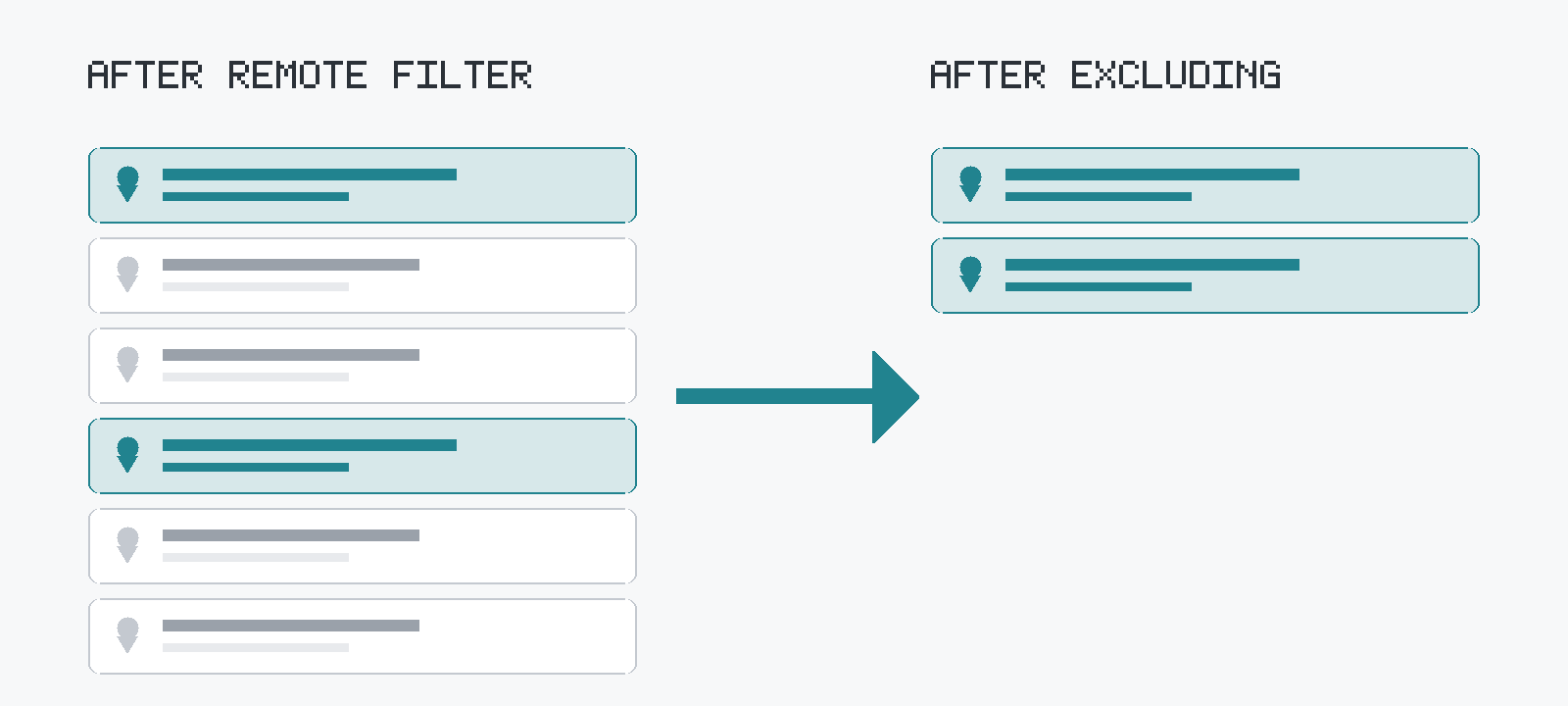
Here's the subtractive layer. A location blocklist works the opposite way to LinkedIn's filters: you name the places that disqualify a role, and any listing whose location matches disappears from the feed.
JobSieve, a free LinkedIn job filter, does exactly this with its Location Exclusion list. Matching is case-insensitive and works on partial text, so excluding "California" also removes "San Francisco, California." It matches against the location shown on the job card, so add the wording the cards actually use. It's open source under the MIT license, it asks for two permissions (storage and activeTab) with access limited to LinkedIn job pages, and it runs locally with no account. You can install JobSieve free from the Chrome Web Store, or read the source on GitHub before you do.
Set it once. The wrong-location roles stop appearing as you scroll.
Step 5: Save the cleaned search as an alert
Now turn on the alerts toggle. Order matters: an alert on a noisy search just delivers the noise faster, and daily. That ordering is the whole subject of how to stop irrelevant LinkedIn job alerts, if your existing alerts are already full of the wrong cities. Save it after the search is clean, then check whether promoted listings are crowding the top of it. If they are, you can hide promoted jobs on LinkedIn too.
Which fix solves which problem
| The problem | What LinkedIn gives you | What you do yourself |
|---|---|---|
| Hybrid roles in a Remote-filtered search | The Remote filter, which LinkedIn says may still return additional suggestions | Check the workplace type on the card, and exclude the metro if the role is local-hybrid |
| Roles pinned to a city you can't reach | The Location field, which adds a place you want | Exclude those cities, states, or countries with a location blocklist |
| "Remote" that's country- or time-zone-restricted | The restriction, written in the description text | Open the posting and read it before applying |
What's left after the wrong-location roles are gone
A cleaner list, and a shorter one. What tends to remain is repeat postings from companies you'd never join and roles carrying a deal-breaker in the body text, both of which a company blocklist and a keyword blocklist handle the same way you just handled locations.
Then the part that actually decides the outcome. With fully remote roles at 3% of the postings Robert Half analyzed, the few that fit are worth a real application rather than a fast one. When one shows up, tailor your resume, cover letter, and application answers to that exact posting with JobMason. JobSieve finds the right roles; JobMason tailors your application to each one.
Set your exclusions once, then search for remote jobs on LinkedIn again. The list you get back is the one worth your time.
FAQ
Why does LinkedIn show hybrid jobs in my remote search? Because the Remote filter guides your results rather than sealing them. LinkedIn states that you may see additional suggestions based on your search query and preferences, and that it uses your search activity and similar members' searches when ordering results. Workplace type and location are also separate fields on a posting, so a role can be labelled Remote while still attached to a specific city.
How do I find only fully remote jobs on LinkedIn? Filter for Remote, set your location field to the country or region you can legally work in, then exclude the locations you can't take. Read each description for country or time-zone restrictions before applying, since those live in the body text and not in the tag. Save the search as an alert only after it's returning clean results.
Why can't I filter for remote jobs on LinkedIn anymore? The documented control is still the Remote option in the filters at the top of the job search results page. If you've applied it and the results look wrong, the causes above apply: filters permit additional suggestions, ordering is personalised to your activity, and workplace type is stored separately from location. Job seekers report this regularly on r/linkedin.
How many jobs are actually remote? Robert Half's analysis of job postings found 3% were fully remote in Q2 2026, against 10% hybrid and 87% fully on-site. That figure covers postings across the market rather than LinkedIn alone, so treat it as the general shape of the market rather than a LinkedIn statistic.
Is there a way to block wrong-location jobs on LinkedIn? LinkedIn's documented job search filters, Location included, work by adding the things you want. Removing a place takes a location blocklist, which is what a job filter extension adds: JobSieve is free, open source, and runs locally in your browser, and its Location Exclusion list hides any listing whose location matches an entry you've added.
Frequently asked questions
- Why does LinkedIn show hybrid jobs in my remote search?
- Because the Remote filter guides your results rather than sealing them. LinkedIn states that you may see additional suggestions based on your search query and preferences, and that it uses your search activity and similar members' searches when ordering results. Workplace type and location are also separate fields on a posting, so a role can be labelled Remote while still attached to a specific city.
- How do I find only fully remote jobs on LinkedIn?
- Filter for Remote, set your location field to the country or region you can legally work in, then exclude the locations you can't take. Read each description for country or time-zone restrictions before applying, since those live in the body text and not in the tag. Save the search as an alert only after it's returning clean results.
- Why can't I filter for remote jobs on LinkedIn anymore?
- The documented control is still the Remote option in the filters at the top of the job search results page. If you've applied it and the results look wrong, the causes above apply: filters permit additional suggestions, ordering is personalised to your activity, and workplace type is stored separately from location. Job seekers report this regularly on r/linkedin.
- How many jobs are actually remote?
- Robert Half's analysis of job postings found 3% were fully remote in Q2 2026, against 10% hybrid and 87% fully on-site. That figure covers postings across the market rather than LinkedIn alone, so treat it as the general shape of the market rather than a LinkedIn statistic.
- Is there a way to block wrong-location jobs on LinkedIn?
- LinkedIn's documented job search filters, Location included, work by adding the things you want. Removing a place takes a location blocklist, which is what a job filter extension adds: JobSieve is free, open source, and runs locally in your browser, and its Location Exclusion list hides any listing whose location matches an entry you've added.
Sources
- LinkedIn documents the path to remote roles: click the Jobs icon, describe the job you're looking for in your own words in the search bar, then use the filter options at the top of the search results page and select Remote. The page also documents the alerts toggle and warns readers to be aware of how to recognize and report job scams.
- LinkedIn states that you may see additional suggestions based on your search query and preferences, that any job search renders up to 1,000 results by default, and that it considers your search activity and other members' similar searches when ordering results. The page lists the available filters and specifies that Location takes a postal code, city, state, province, or country.
- LinkedIn documents workplace type as a distinct attribute with three values, on-site, remote, or hybrid, separate from location. This page covers filtering candidates in LinkedIn Recruiter rather than job search behaviour.
- Robert Half's analysis found that of the job postings analyzed in Q2 2026, 87% were fully on-site, 10% were hybrid, and 3% were fully remote, that fully in-office roles rose from 65% in Q4 2025 to 87% in Q2 2026, and that this means more competition for fully remote roles. It also reports the states with the highest share of hybrid postings in Q2 2026.
- Job seekers report that LinkedIn's remote job filtering stopped behaving as expected, in an r/linkedin thread titled 'Can't search for remote jobs anymore? What did I touch'.
- A second r/linkedin thread, 'No longer able to filter my job searches for remote opportunities', reports the same problem independently.
- JobSieve's MIT-licensed repository documents its Location Exclusion feature, which hides roles in specified cities, regions, or countries by matching the job card's location text case-insensitively, alongside its company blacklist, keyword blocklist, and keyword whitelist. Its manifest declares only the storage and activeTab permissions, with host access limited to LinkedIn job pages.
- JobSieve is listed on the Chrome Web Store as a free extension with no price and no account required, published by the owner of jobsieve.com.