How to Filter LinkedIn Jobs (The Complete Guide)
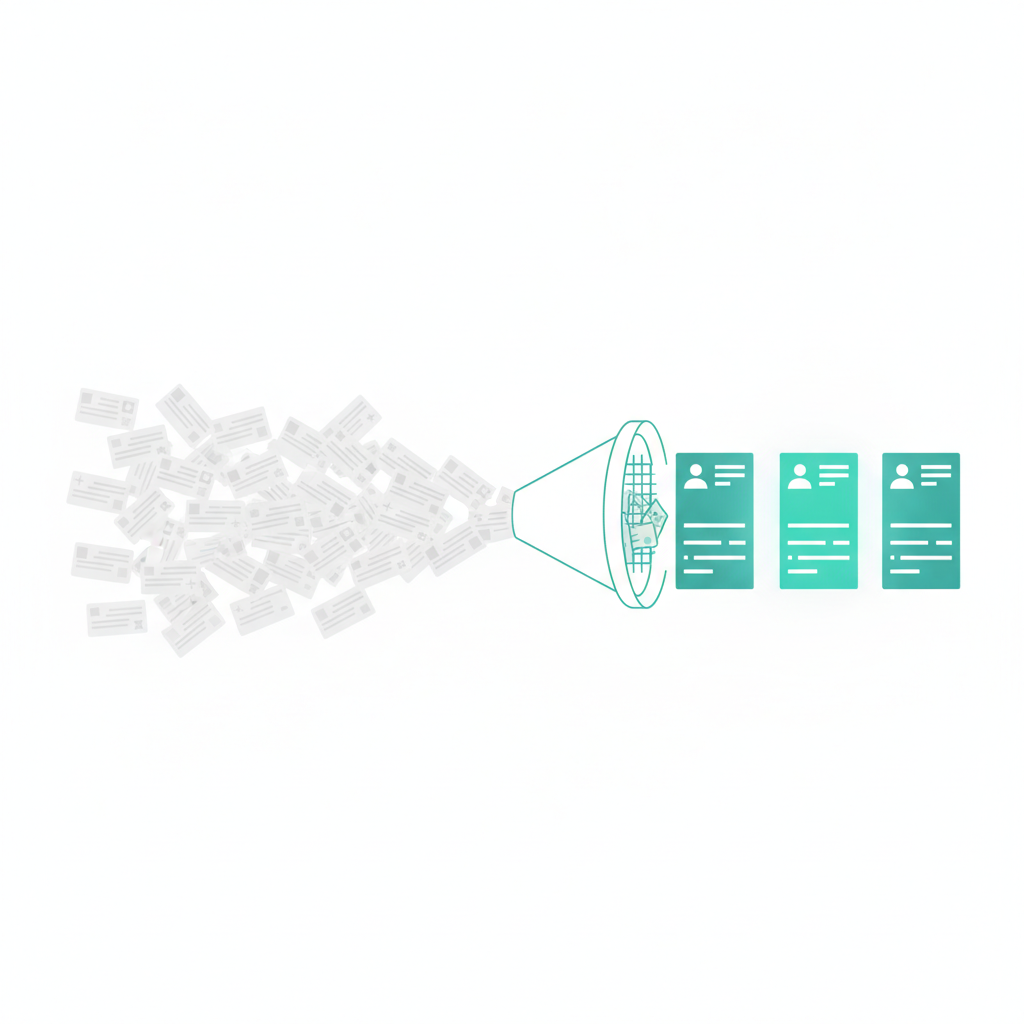
TL;DR: To filter LinkedIn jobs, open the Jobs tab, run your search, then narrow it with LinkedIn's built-in filters (keywords, location, date posted, experience level, job type, workplace type, Easy Apply) and switch the sort to Most recent. The native filters won't exclude specific companies, hide promoted posts, or stop wrong-location "remote" roles from slipping through, so this guide also covers the workaround that closes each gap.
Filtering your LinkedIn job feed means two jobs, not one. Hiding the listings you don't want, and surfacing the ones you do. Most advice only covers the hiding. The surfacing is the half that actually saves you time.
Step 1. How to filter LinkedIn jobs with the native filters
Everything begins on the Jobs tab. Type your role into the search bar, add a location, and search. Above the results sits a row of filter buttons; click All filters to open the full set.
LinkedIn documents these job filters:
- Date posted (past 24 hours, past week, past month)
- Experience level (internship through executive)
- Job type (full-time, contract, part-time, internship)
- Workplace type (on-site, remote, hybrid)
- Location, Company, Industry, Job function, Title
- Easy Apply, and Under 10 applicants
Set the ones that match how you actually work. If you only want contract roles you can apply to without leaving LinkedIn, Job type plus Easy Apply narrows a firehose to a stream in two clicks.
Sort by Most recent, not Most relevant
By default LinkedIn sorts results by Most relevant. That's its ranking, not yours, and it can surface older listings and promoted posts near the top. Change the sort to Most recent and you get a newest-first feed ordered by date instead of by LinkedIn's relevance ranking.
Step 2. See only fresh roles with the date-posted URL trick
LinkedIn's Date posted filter stops at "Past 24 hours." In a busy market, a day of postings can still be hundreds of roles, plenty of them already buried under applicants. There's a sharper cut hiding in the address bar.
Set Date posted to Past 24 hours, then look at your browser's URL. You'll find a parameter that reads f_TPR=r86400. That number is seconds, and 86,400 is exactly 24 hours. Change it to r3600 for the last hour, or r900 for the last 15 minutes, then press Enter. LinkedIn reloads with only the freshest roles, the ones posted before the crowd arrives. Job seekers on r/jobsearchhacks documented this f_TPR trick, and it works because the filter you set in the UI is just writing that same value into the URL. It's a community-found workaround rather than an official feature, so LinkedIn could change how the parameter behaves at any time.
Step 3. How do you hide promoted jobs on LinkedIn?
Some listings show a small Promoted tag beside the title. Those are paid job posts: a company paid LinkedIn to push the listing in front of you. That isn't inherently a scam, but promoted posts sit near the top of your results whether or not they fit, and LinkedIn gives you no switch to turn them off.
Sorting by Most recent helps a little, since it reorders by date. Promoted posts can still appear, though. To remove them from the feed for good, you need a filter that sits on top of LinkedIn, which we'll get to below. For the full breakdown of why paid posts crowd out free ones and every way to clear them, see how to hide promoted jobs on LinkedIn.
Step 4. Exclude companies and staffing agencies you'd never join
This is the gap that frustrates people most. LinkedIn's Company filter lets you filter by a company, so you can choose to see only that employer's jobs. It offers no way to do the reverse and hide a company you never want to see again.
If the same two staffing agencies repost the same contract every week, that missing button is the entire problem. Native LinkedIn can't block an employer. A company blocklist can, and it's the single filter that does the most to clean a repetitive feed. Before you write those employers off, it's worth knowing how to tell a repost from a ghost job, because the two mean different things.
There's a full walkthrough of this one gap, including the Boolean NOT route and why agency listings dominate in the first place, in how to exclude companies and agencies on LinkedIn jobs.
Step 5. Why do remote searches still show the wrong location?
Filter for Remote and you'd reasonably expect only remote roles. Instead you still see jobs pinned to a city halfway across the country. On LinkedIn, workplace type (remote, hybrid, on-site) and location are separate fields. A listing can be tagged Remote while still attached to "San Francisco Bay Area," so it clears your remote filter and lands in your feed anyway.
The fix is to exclude the locations you can't or won't work in. That's something LinkedIn's own filters don't offer, but a location blocklist does: name the cities or regions you want gone, and the mislabeled "remote" roles disappear with them. There's a longer walkthrough in how to find remote jobs on LinkedIn, which covers why the Remote filter lets these through in the first place.
Step 6. Block deal-breaker keywords and highlight your real matches
Most guides stop at Step 5. This is the step that changes how your feed feels.
There are two moves here, and they pull in opposite directions. The first is a keyword blocklist: words that instantly disqualify a role for you. "Unpaid." "Commission-only." "Clearance required." "Senior," if you're two years out of school. Any listing carrying them vanishes.
The second is rarer and more useful: a keyword highlight list. Instead of hiding the bad, it marks the good. Feed it the skills and titles you actually want, and matching roles get flagged so they stand out the moment you scroll past.
Say you're a data analyst who won't relocate and won't touch commission-only sales. Your blocklist might be commission-only, door-to-door, and relocation required; your highlight list might be SQL, Python, analytics, and remote. From then on the junk drops out of view and anything mentioning your actual stack lights up. LinkedIn's search box does a rough version of the first move (it matches your query), but it can't reliably exclude terms and it can't highlight anything. This additive filtering, surfacing matches instead of only removing noise, is the part almost no tool does.
Where LinkedIn's native filters fall short
Native filters handle the common cases well. Here's what they leave on the table, and how to close each gap:
| What you want to do | LinkedIn's native filter | The gap |
|---|---|---|
| See only the newest roles | Date posted (24h minimum) | Edit f_TPR in the URL for tighter windows (1h, 15m) |
| Hide promoted / sponsored posts | None | Paid placements always show; no native toggle |
| Exclude a company or agency | Filter by company only | No way to block an employer you don't want |
| Keep only true remote roles | Workplace type + location (separate) | Wrong-city "remote" roles slip through |
| Drop deal-breaker keywords | Search box (matches only) | Can't reliably exclude terms |
| Highlight roles that fit your skills | None | No additive filter exists natively |
| Skip roles you've already seen | None | Reposts recur with no native way to hide them |
One more gap sits just outside the table. Turn on the alerts toggle and LinkedIn builds the alert from the search criteria you have at that moment, so every shortfall above gets frozen into the email too. If your inbox is the part that hurts, start with how to stop irrelevant LinkedIn job alerts, which covers rebuilding the search behind an alert and the second email stream that has no alert behind it at all.
Together these gaps are why the feed feels cluttered no matter how carefully you filter your LinkedIn job search. And it isn't only you. A Greenhouse study reported by Entrepreneur estimated that roughly a quarter of online job postings are "ghost jobs" with no genuine intent to hire. Add the reposts of roles you've already scrolled past, and even a well-filtered feed carries dead weight. Filtering can't confirm a job is real. It can strip out enough noise that the listings you do read are worth the read.
The fastest way to declutter your LinkedIn job feed
You can do every step above by hand, and it genuinely helps. It's also a lot of clicking, and you repeat most of it on every new search.
If you'd rather not redo that each session, that's why we built JobSieve. It's a free, open-source Chrome extension that helps you filter your LinkedIn job feed automatically as you scroll: hide promoted posts, block companies and staffing agencies, exclude locations, drop deal-breaker keywords, and highlight the roles that match your skills, all from one panel. It runs entirely in your browser, with no account and no sign-up, and nothing about your search ever leaves your machine. The code is public under an MIT license, so you can read exactly what it does. It's the only actively maintained open-source LinkedIn job filter, which means the privacy claim isn't something you have to take on trust. If you'd rather check that for yourself, and check it on any other tool you're considering, here's how to tell whether a job search browser extension is safe. Turn it off and every hidden listing comes straight back. You can install JobSieve free from the Chrome Web Store in under a minute.
Good filtering leaves you with a short list of roles actually worth your time. The next bottleneck is the applications. Once you've found a role that fits, JobMason can tailor your resume and cover letter to that exact posting, along with a hiring-manager email and answers to the application questions. JobSieve finds the right roles; JobMason tailors your application to each one.
FAQ
Can you hide promoted jobs on LinkedIn? Not with a native setting. LinkedIn has no toggle to hide promoted (paid) listings. Sorting by Most recent pushes some of them down, but the reliable fix is a browser extension like JobSieve that removes them from the feed entirely. Our guide to hiding promoted jobs on LinkedIn covers all four methods.
Can you exclude a specific company from LinkedIn job search? No. LinkedIn's company filter only lets you include companies, not block them. To hide an employer or a staffing agency for good, you need a company blocklist, which a filtering extension provides.
How do I see only the newest LinkedIn jobs?
Set Date posted to Past 24 hours, then edit the f_TPR=r86400 value in the URL to a smaller number of seconds: r3600 for the last hour, r900 for the last 15 minutes. Sort by Most recent for a clean, newest-first list.
Why do wrong-location jobs show up when I filter for remote? Because "Remote" and location are separate fields on LinkedIn. A role tagged Remote can still be attached to a specific city, so it passes the remote filter. Excluding the locations you can't work in is the most dependable way to clear them.
How do I stop seeing reposted or ghost job listings?
LinkedIn has no native filter for reposts, so lean on freshness: sort by Most recent and tighten the date window with the f_TPR trick to catch roles before they're recycled. Since a sizable share of postings are ghost jobs, treat any listing that keeps reappearing with healthy skepticism.
Are LinkedIn job filter extensions safe, and is JobSieve free? It depends on the extension and the permissions it asks for, so check what data an extension can access before you install it. JobSieve is free and open source, requests access only to LinkedIn job pages, and does all its filtering locally, so nothing about your search is sent anywhere.
Now you know how to filter LinkedIn jobs from every angle: the native filters, the URL trick, and the gaps only an extension can close. Set them once, then protect the time you just bought back. A cleaner feed was never the point. It's what lets you stop scrolling and start applying to the few roles that actually fit.
Frequently asked questions
- Can you hide promoted jobs on LinkedIn?
- Not with a native setting. LinkedIn has no toggle to hide promoted (paid) listings. Sorting by Most recent pushes some down, but the reliable fix is a browser extension like JobSieve that removes them from the feed. Our guide to hiding promoted jobs on LinkedIn covers all four methods.
- Can you exclude a specific company from LinkedIn job search?
- No. LinkedIn's company filter only lets you include companies, not block them. To hide an employer or staffing agency for good, you need a company blocklist, which a filtering extension provides.
- How do I see only the newest LinkedIn jobs?
- Set Date posted to Past 24 hours, then edit the f_TPR=r86400 value in the URL to fewer seconds: r3600 for the last hour, r900 for the last 15 minutes. Sort by Most recent for a newest-first list.
- Why do wrong-location jobs show up when I filter for remote?
- Because 'Remote' and location are separate fields on LinkedIn. A role tagged Remote can still be attached to a specific city, so it passes the remote filter. Excluding the locations you can't work in is the most dependable way to clear them.
- How do I stop seeing reposted or ghost job listings?
- LinkedIn has no native filter for reposts, so lean on freshness: sort by Most recent and tighten the date window with the f_TPR trick. Since a sizable share of postings are ghost jobs, treat any listing that keeps reappearing with skepticism.
- Are LinkedIn job filter extensions safe, and is JobSieve free?
- It depends on the extension and the permissions it asks for, so check what data it can access first. JobSieve is free and open source, requests access only to LinkedIn job pages, and filters locally, so nothing about your search is sent anywhere.
Sources
- LinkedIn's job search filters results by date posted, experience level, job type, workplace type, location, company, Easy Apply, and under 10 applicants, and offers no native control to exclude a company.
- Jobs with a 'Promoted' tag are paid job posts that companies pay to promote on LinkedIn.
- LinkedIn's date-posted filter maps to an f_TPR URL parameter where r86400 equals the last 24 hours (86,400 seconds); editing it to a smaller value shows fresher postings.
- A Greenhouse study reported by Entrepreneur estimated that roughly a quarter of online job postings are 'ghost jobs' with no genuine intent to hire.